
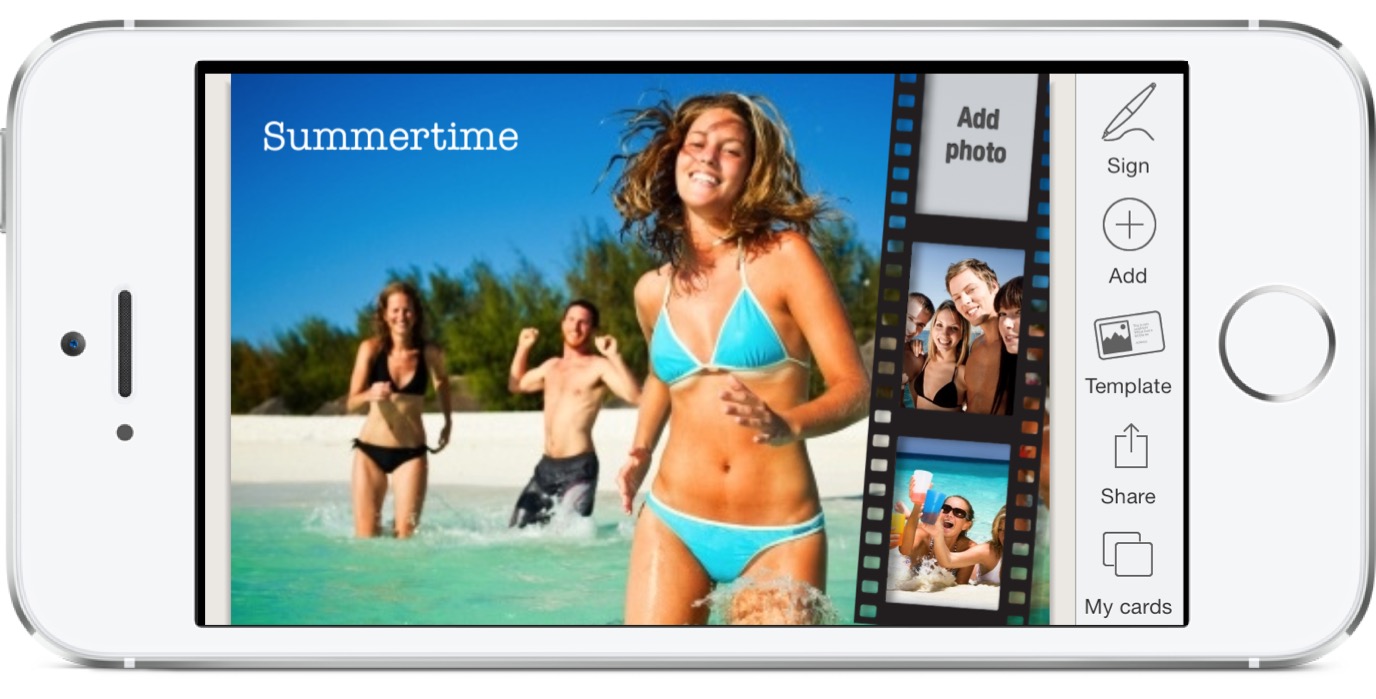
Lifecards
Forget about MMSs and sending photos as boring email attachments. Save money on postcards. Create your own personal cards right from your iPhone or iPad using your own photos.
Lifecards allows you to create imaginative e-postcards directly on your iPhone or iPad. Save your ecards to the photo-album and email them conveniently from Mail.
Lifecards uses a state-of-the-art visual engine that pushes the iPhone and iPad to its limits by allowing free zoom and pan of the card while you edit it. You can insert, move, scale, and rotate photos from you photo-album, and you can also insert texts and select font, color, size, and alignment.
Templates
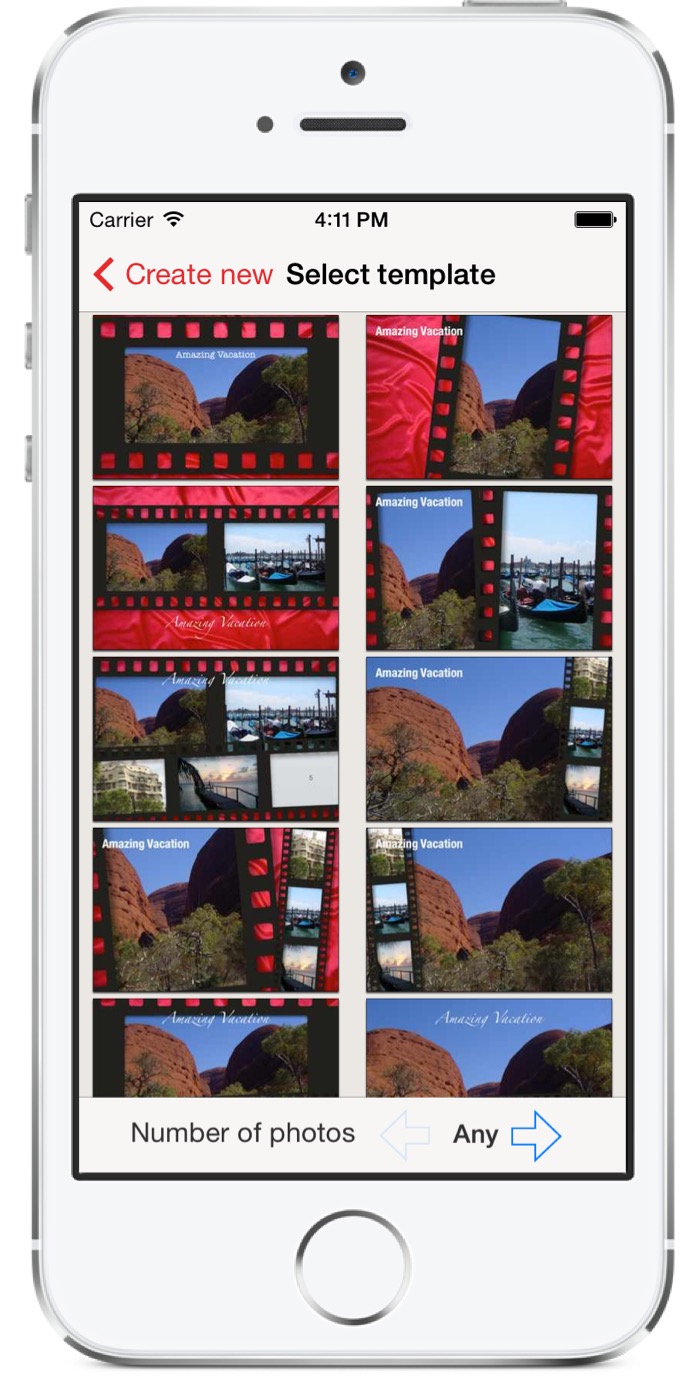
Lifecards includes more than 350 templates with more to come in updates. Templates range from colorful hearts to classic neutral postcards with black and white borders. Some templates enable you to insert four different photos. To simplify the selection, templates are divided among different categories. Start by choosing a category and then select the template within that category that you like the most.
You choose a template when you create a card, but you can easily change the template once you have added text and photos, so if the template you first picked does not work with the selected photos simply pick another one.
Templates come in large variety. Some templates include large areas for writing text, while others only allow you to insert photos and titles.
Photos
Inserting photos is straight-forward. Simply tap the areas of the template entitled "Add Photo" and select the source of the photo (Photo-album, Facebook, Camera, etc.). Now simply, pick the photo from the source you have chosen, it will be inserted in the card.
Once a photo has been inserted you can manipulate its appearance
- You can position it accurately by dragging it with one finger.
- You can enlarge it by pinching with two fingers.
- You can even rotate it by pointing it at it with two fingers and rotate -- Just as you would in real life.
Filters
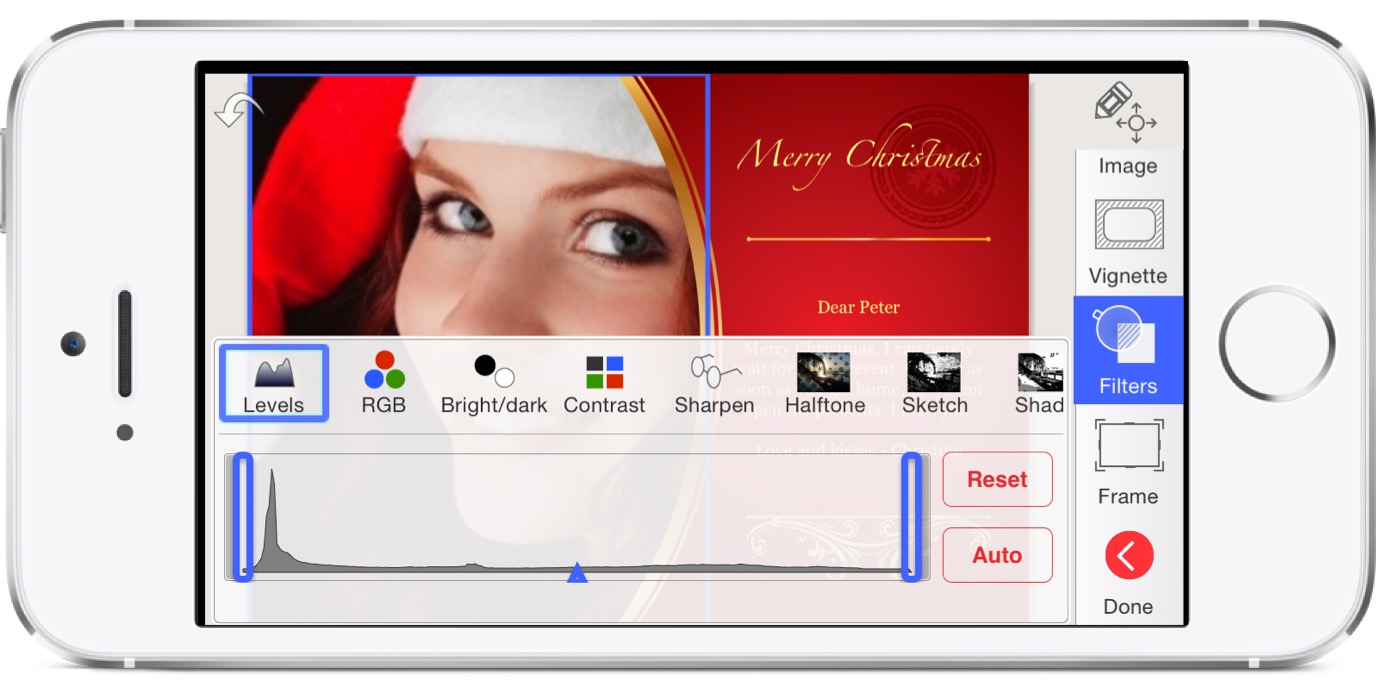
Lifecards includes several simple photo filters that you can apply to your cards. Use sharpen, gray, sepia and more filters right from within Lifecards.
Text
Text is also easy to add. Simply tap one of the areas where it says "Add text" and enter your text. The text can occupy multiple lines. Once you have completed entering the text you can modify the text's appearance. You can select among many different fonts and colors. You can modify the size of the text and instantly see the resulting change. You can also change the text's alignment both horizontally and vertically.
If you wish to change the text at a later time simply tap to select the text and alter font, color, and double tap on the text to change the words.
Zooming and panning
Because the iPhone has a small screen it can be difficult to fully control all the adjustments of photos and text and especially get a good sense of the final look. Therefore Lifecards contain a pan-and-zoom mode. Simply tap the "magnifying glass" button to enter and exit this mode.
Once you are in pan-and-zoom-mode you can pinch to zoom in on specific areas of the card. You can also drag the card to pan towards a different part of the card. We have pushed the iPhone to its limits so everything is smooth as a knife through butter.
Landscape and portrait
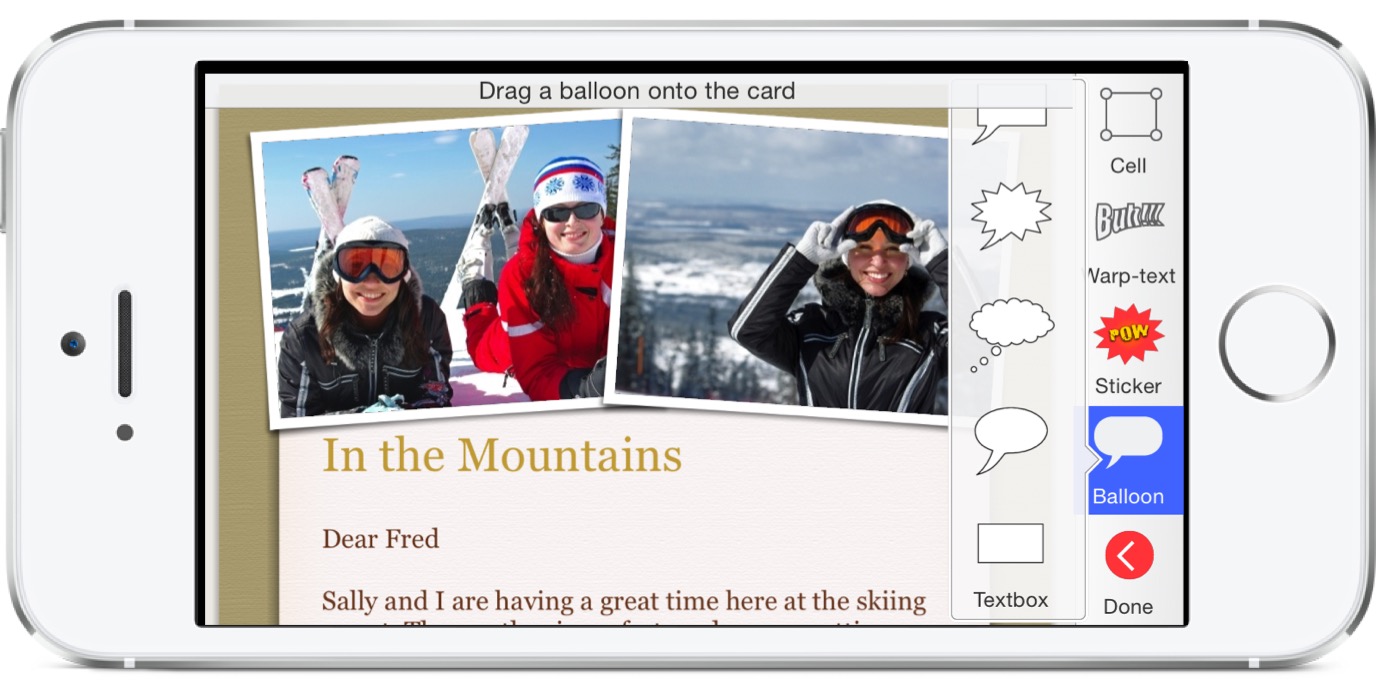
Because editing a card can sometimes be easier in landscape mode Lifecards can easily switch between portrait and landscape mode. Simply rotate the screen and Lifecards will change appearance. The on-screen card template and the buttons at the bottom of the screen will rotate smoothly to fit with the new orientation.
Saving cards and iCloud
Because you may be interrupted while you are creating a card, or you may want to reuse a card, cards are automatically saved when you leave the app.
When you wish to revisit a card for later editing simply select it from the gallery. You can also duplicate cards if you wish to create individualized versions of each card.
You can also enable iCloud synchronization for individual cards, so that you can start on a card on your phone, and continue on your iPad later.
Facebook, Twitter and Flickr support
Lifecards supports upload of cards right to your Facebook, Flickr, and Twitter accounts. Just fill in the account details and upload to one of your online photo albums. That way every one of your friends can see your newest creation.
You can also insert photos directly from your Facebook photo-albums when you create your card.
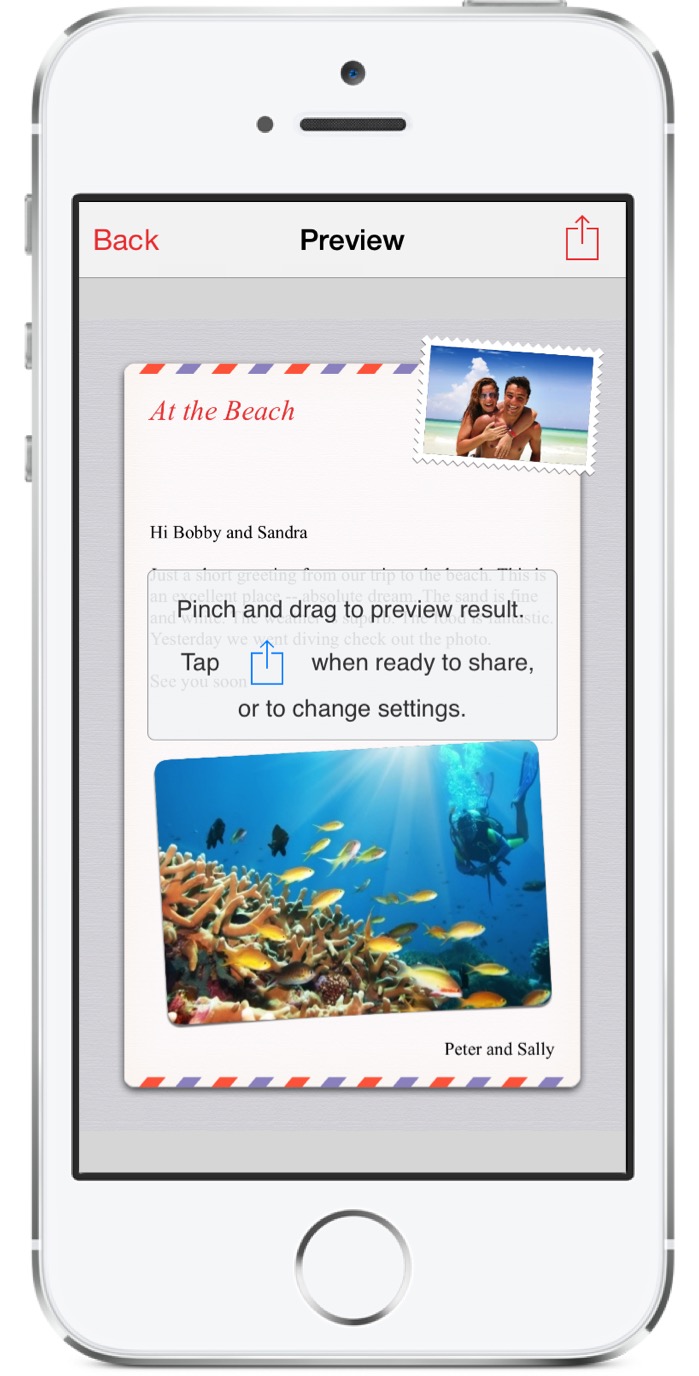
Once you finish with the card you can preview the final result it in every detail. In preview mode you can zoom in and out and pan around the card. Of course preview can be done in both portrait and landscape orientations.