
|
Voice Alarm InstructionsWelcomeVoice Alarm can notify you of the remaining time until different events. As the events approach Voice Alarm will speak the time either on fixed time intervals, or more and more often as the events approach. If you are listening to your music at the same time, Voice Alarm will pause the music while the time is announced. Events can be:
Setting up eventsTo add an event press the "+" button in the upper right corner of the event list.
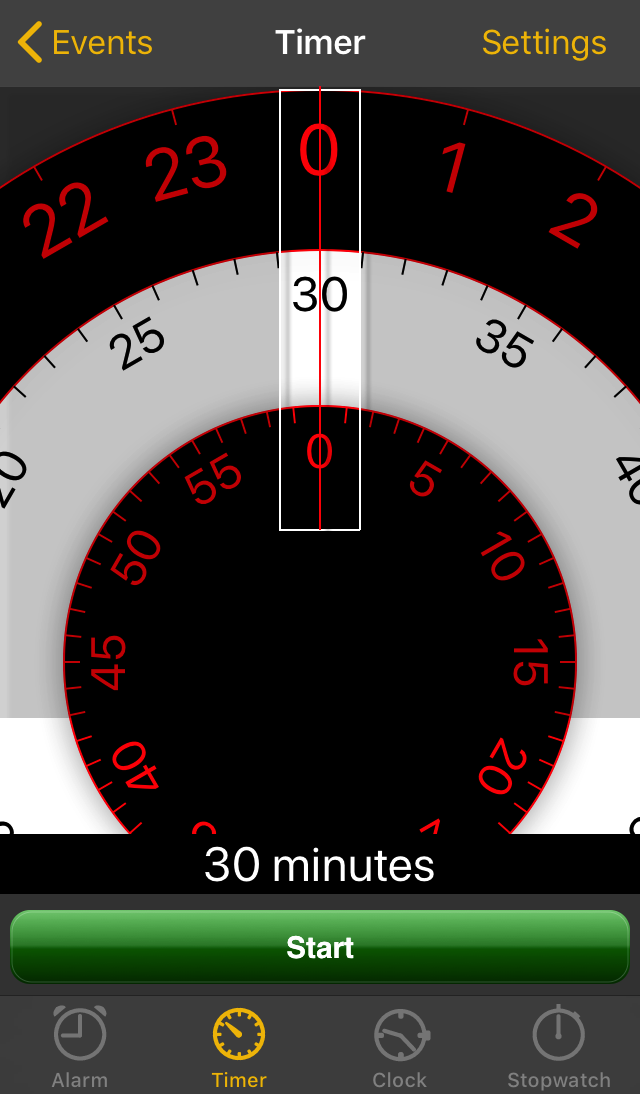
This will lead you to the event setting screen:
Here you can select the type of event (at the bottom of the screen). For alarms and timers, you can adjust the time of the event by turning the dials on the screen. Once the time of the event is correctly set, you simply tap "Start". Additional settings
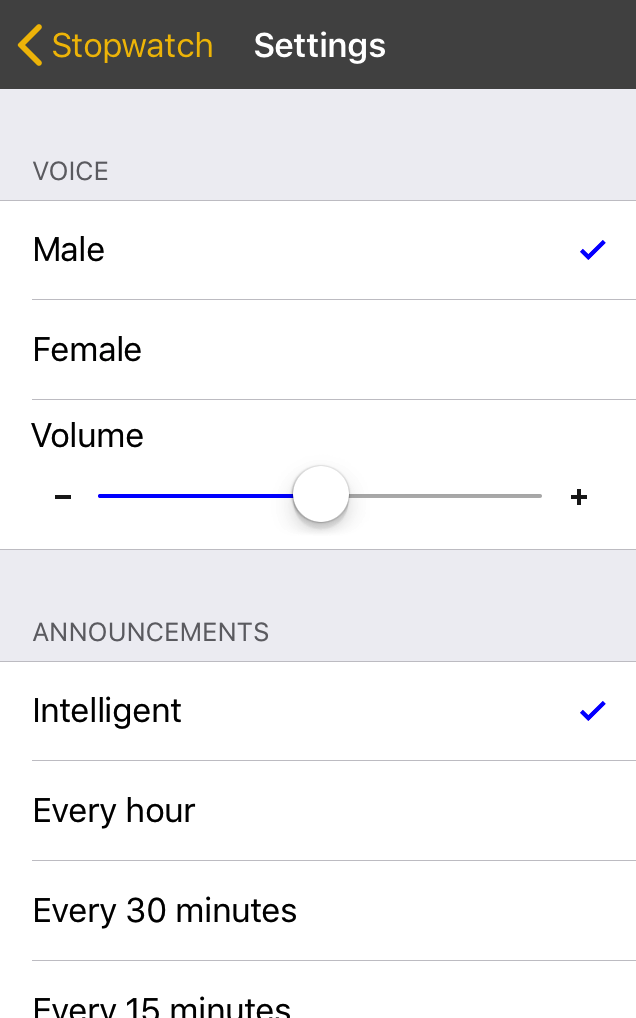
Additional settings for each event can be found under "Settings". Here you can change:
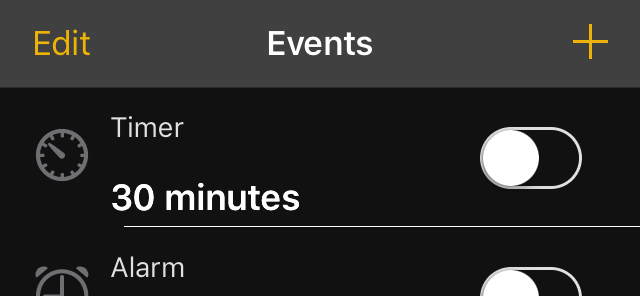
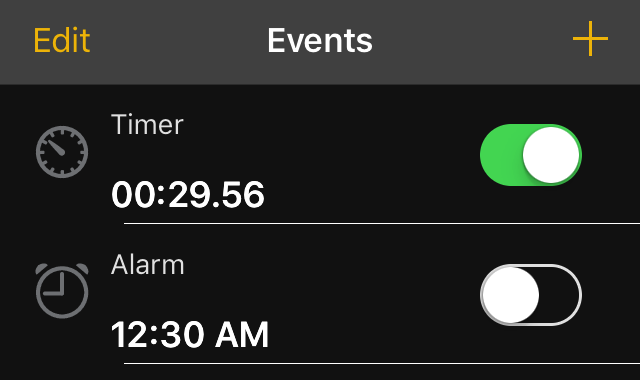
Managing eventsIn the event list you can delete events and turn them on or off easily.
To turn announcements for an event on or off, press the "on/off" switch next to the event. Note that timer events are paused when turned off.
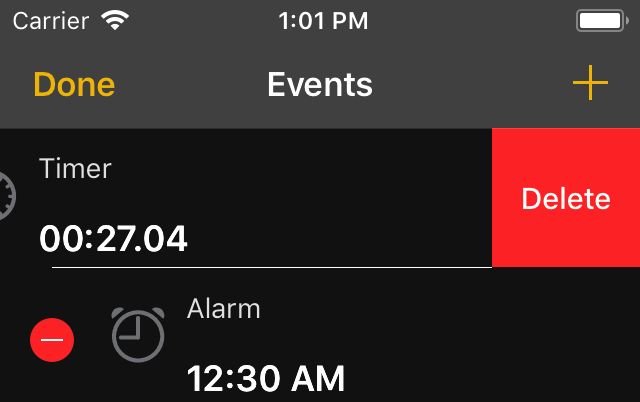
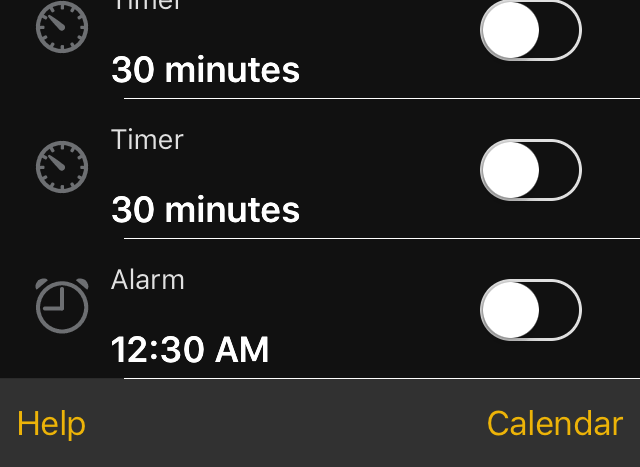
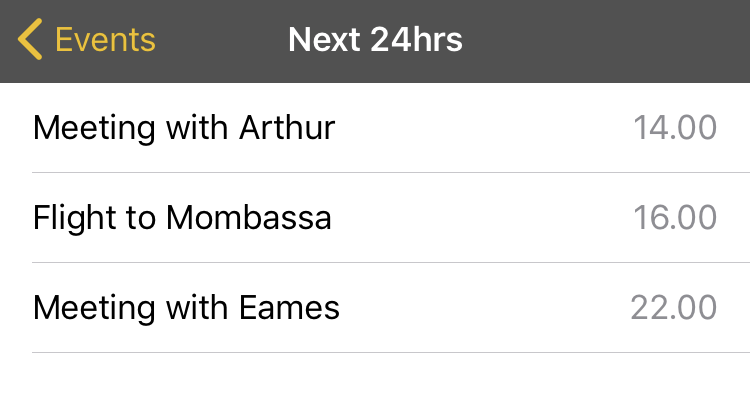
To delete an event, press the "Edit" button in the top left. and press the unlock icon next to the event. Now tap "Delete". Tap "Done" once your are done deleting events. Importing from CalendarYou can import events from the calendar occurring during the 24 hours. To do so, tap "Calendar" on the bottom of the events list:
To import an event, select it from the list of events. Note that only events taking place during the next 24 hours are listed.
FeedbackIf you have any comments or feedback, please email us at: support@vividapps.com |

Email: support@vividapps.com
Address: Weidekampsgade 23, 4 th., 2300 Kbh. S, Denmark
Vivid Apps ApS, CVR: 42482757